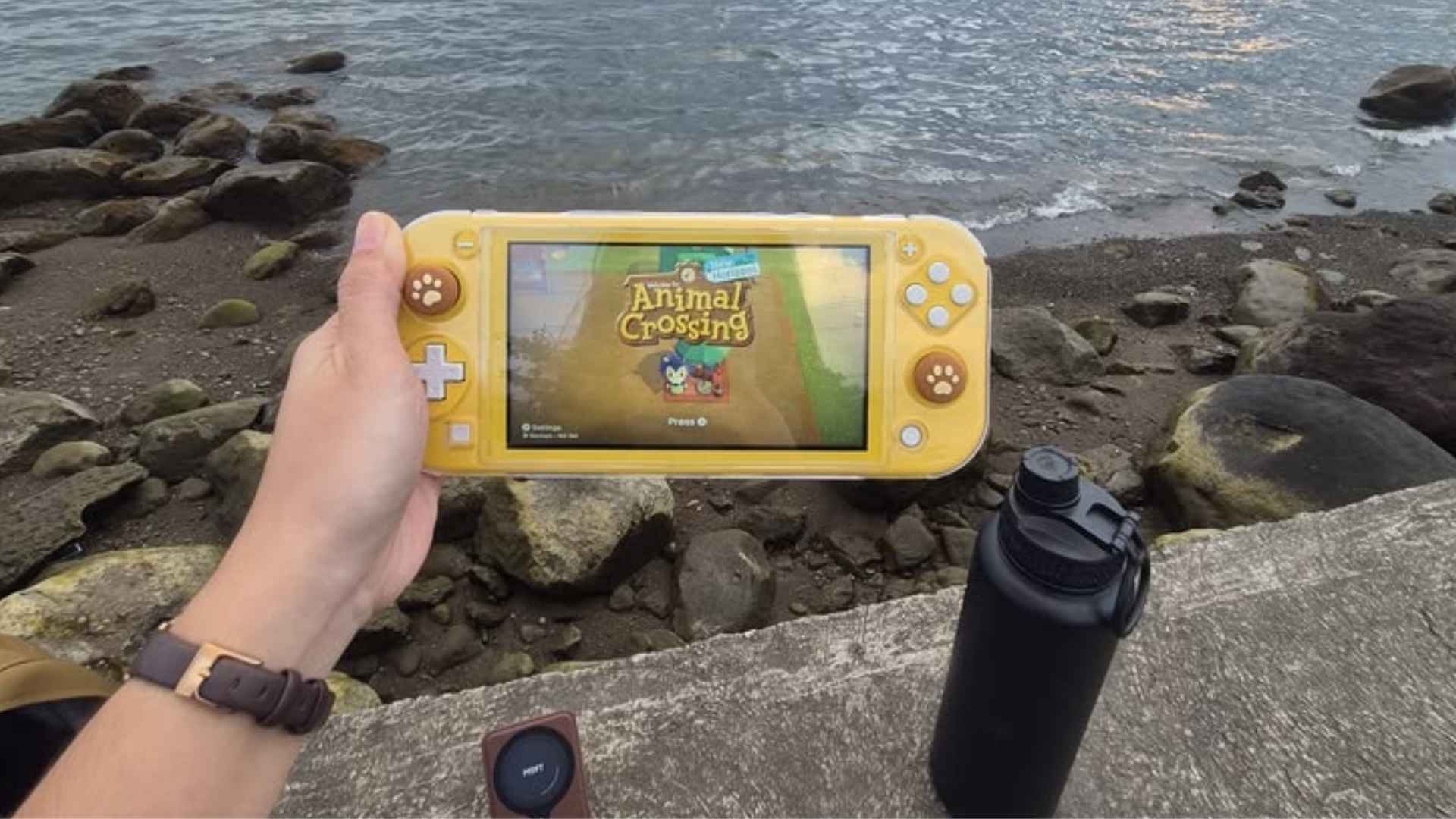
The boundary between home consoles and portable hardware continues to blur as handheld systems rise in popularity. Valve's Steam Deck has emerged as a versatile powerhouse, capable of running not only native PC titles but also streaming modern console experiences. By configuring local streaming capabilities, players can leverage their existing hardware to access expansive libraries without sitting in front of a television.
Understanding the Necessary Software
Official applications for streaming modern console games are generally absent from Linux-based platforms. To fill this gap, independent developers created open-source alternatives like Chiaki and its optimized counterpart, Chiaki4deck. These specialized programs serve as the required translation layer between the console's internal network protocols and the handheld device.
Acquiring these applications is straightforward via the built-in software discovery center in desktop mode. Once installed, the application requires a brief initial configuration to discover active home consoles on the local network. A stable wireless environment or a wired dock connection ensures the configuration process goes smoothly without dropped signals.
Step by Step Configuration Guide
Before launching the software, users must obtain their unique account identifier, which differs from standard public usernames. Various web-based tools can safely extract this numeric ID using public profile information. After securing this identifier, you must navigate to the system settings on the home console to generate an official remote link code.
Inputting both the account ID and the freshly generated pin into the handheld client establishes a permanent encrypted handshake. It is highly recommended to add the streaming application as a non-Steam shortcut immediately after successful authentication. This adjustment allows the software to run cleanly inside the standard gaming interface, providing full access to global controller templates.
Network Requirements and Stability Tips
Streaming high-definition interactive media demands an exceptionally robust local network architecture rather than simple high-speed internet. Utilizing a dual-band wireless router configured specifically to the five gigahertz frequency helps prevent stuttering and input delay. For the absolute best performance, the host console should remain connected to the main router using a physical ethernet cable.
Adjusting the bitrate and internal resolution within the application properties can also alleviate visual artifacting on congested networks. Lowering the output target to seven hundred and twenty pixels often provides a flawless visual match for the portable display size. These minor tweaks transform a choppy connection into a highly responsive, low-latency gameplay session.
Compatibility and Control Layouts
The vast majority of modern interactive software functions perfectly when redirected to a portable screen over a local network. Specialized features like standard touch controls and gyroscopic aiming map naturally onto the physical inputs of the handheld system. Players can even create custom touch menu configurations to emulate complex directional pad behaviors or menu shortcuts.
Because the handheld architecture features additional rear buttons, navigating complex console menus becomes significantly more comfortable. Certain proprietary physical features, such as advanced resistive triggers, will adapt to traditional linear inputs automatically. The resulting tactile experience delivers an exceptional balance of comfort and precision for long gaming sessions.